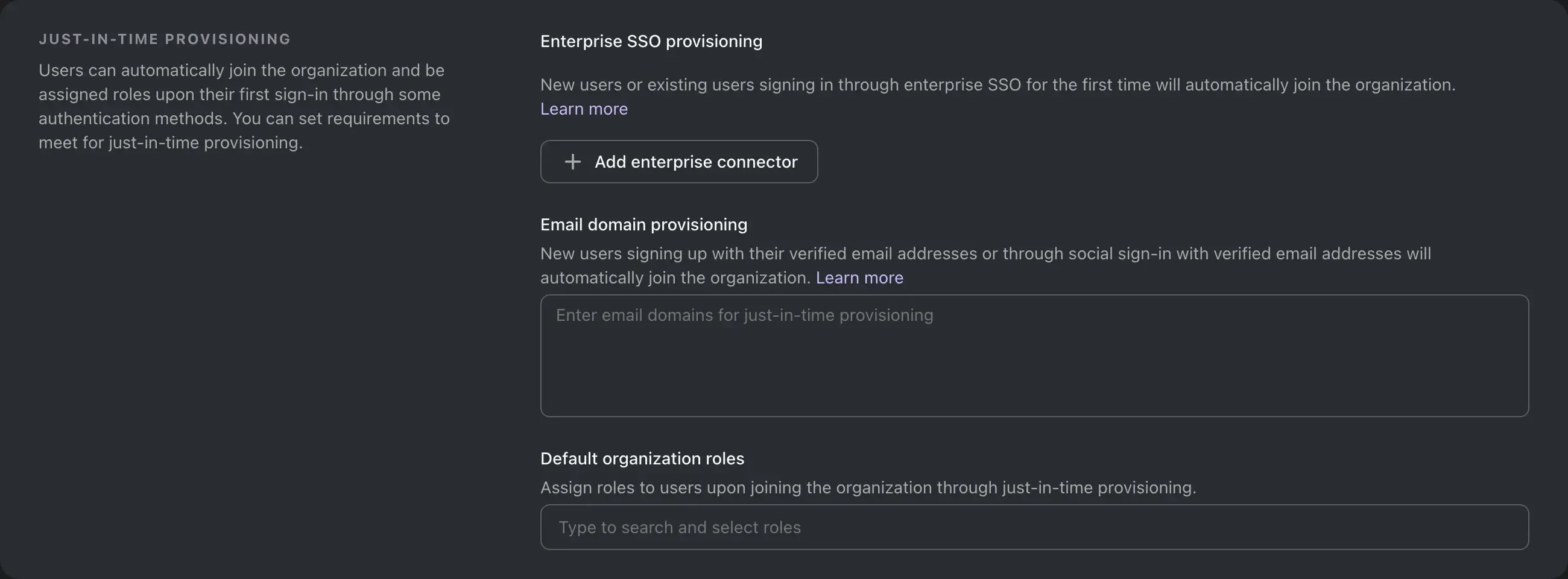
This feature allows users to automatically join the organization and be assigned roles upon their first sign-in through some authentication methods. You can set requirements to meet for Just-in-Time provisioning.
To use this feature, head to the organization settings and find the "Just-in-Time provisioning" section. Management APIs are also available to configure this feature via routes under /api/organizations/{id}/jit. To learn more, see Just-in-Time provisioning.
New or existing users signing in through enterprise SSO for the first time will automatically join organizations that have Just-in-Time provisioning configured for the SSO connector.
Click to expand
To enable this feature, you can add SSO connectors via the Management API or the Logto Console:
We added the following new endpoints to the Management API:
GET /organizations/{organizationId}/jit/sso-connectors
POST /organizations/{organizationId}/jit/sso-connectors
PUT /organizations/{organizationId}/jit/sso-connectors
You can also configure the default roles for users provisioned via this feature. The default roles will be assigned to the user when they are provisioned.
Click to expand
To enable this feature, you can set the default roles via the Management API or the Logto Console:
We added the following new endpoints to the Management API:
operationId is an optional unique string used to identify an operation. If provided, these IDs must be unique among all operations described in your API.
This greatly simplifies the creation of client SDKs in different languages, because it generates more meaningful function names instead of auto-generated ones, like the following examples:
Fixed OpenAPI schema returned by the GET /api/swagger.json endpoint
The : character is invalid in parameter names, such as organizationId:root. These characters have been replaced with -.
The tenantId parameter of the /api/.well-known/endpoints/{tenantId} route was missing from the generated OpenAPI spec document, resulting in validation errors. This has been fixed.
To register for backchannel logout, navigate to the application details page in the Logto Console and locate the "Backchannel logout" section. Enter the backchannel logout URL of your RP and click "Save".
You can also enable session requirements for backchannel logout. When enabled, Logto will include the sid claim in the logout token.
For programmatic registration, you can set the backchannelLogoutUri and backchannelLogoutSessionRequired properties in the application oidcClientMetadata object.
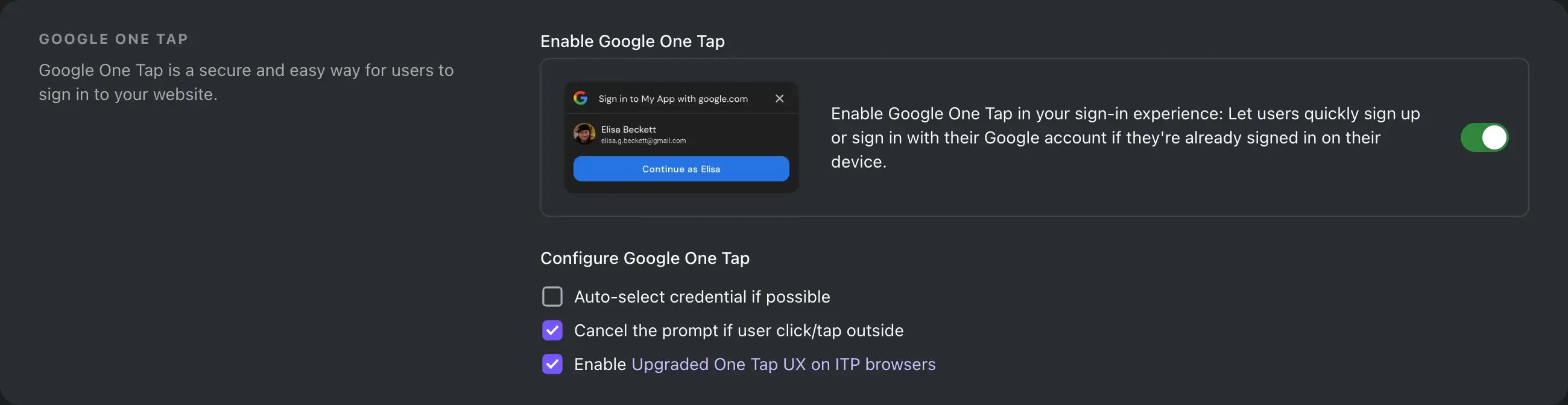
When you added Google as a social connector, you can now enable Google One Tap to provide a smoother sign-in experience for your users with Google accounts.
Head to the Google connector settings in the Logto Console and switch on the "Google One Tap" option.
Allow skipping manual account linking during sign-in#
You can find this configuration in Console -> Sign-in experience -> Sign-up and sign-in -> Social sign-in -> Automatic account linking.
When switched on, if a user signs in with a social identity that is new to the system, and there is exactly one existing account with the same identifier (e.g., email), Logto will automatically link the account with the social identity instead of prompting the user for account linking.
Connector: Google and Azure AD connectors now support custom prompt.
Support per-organization multi-factor authentication requirement:
An organization can now require its member to have multi-factor authentication (MFA) configured. If an organization has this requirement and a member does not have MFA configured, the member will not be able to fetch the organization access token.
A dev panel is available after you sign in to the live preview.
Pagination is now optional for GET /api/organizations/{id}/users/{userId}/roles. If you don't provide page and limit query parameters, the API will return all roles.
Added user detail data payload to the User.Deleted webhook event.