Setting up a sign-in flow for your app is quite common, but sometimes you meet a little complex scenario,
You run a multi-app business.
You have a multi-tenant app that supports different workspaces.
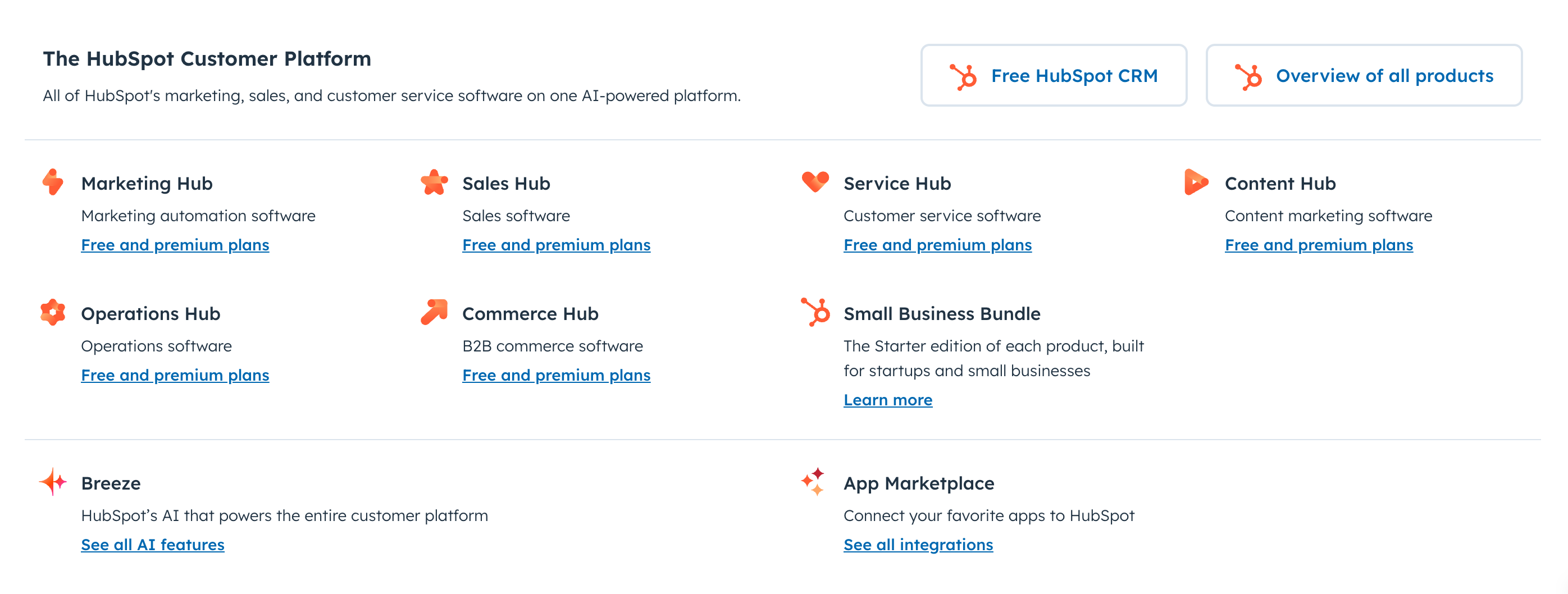
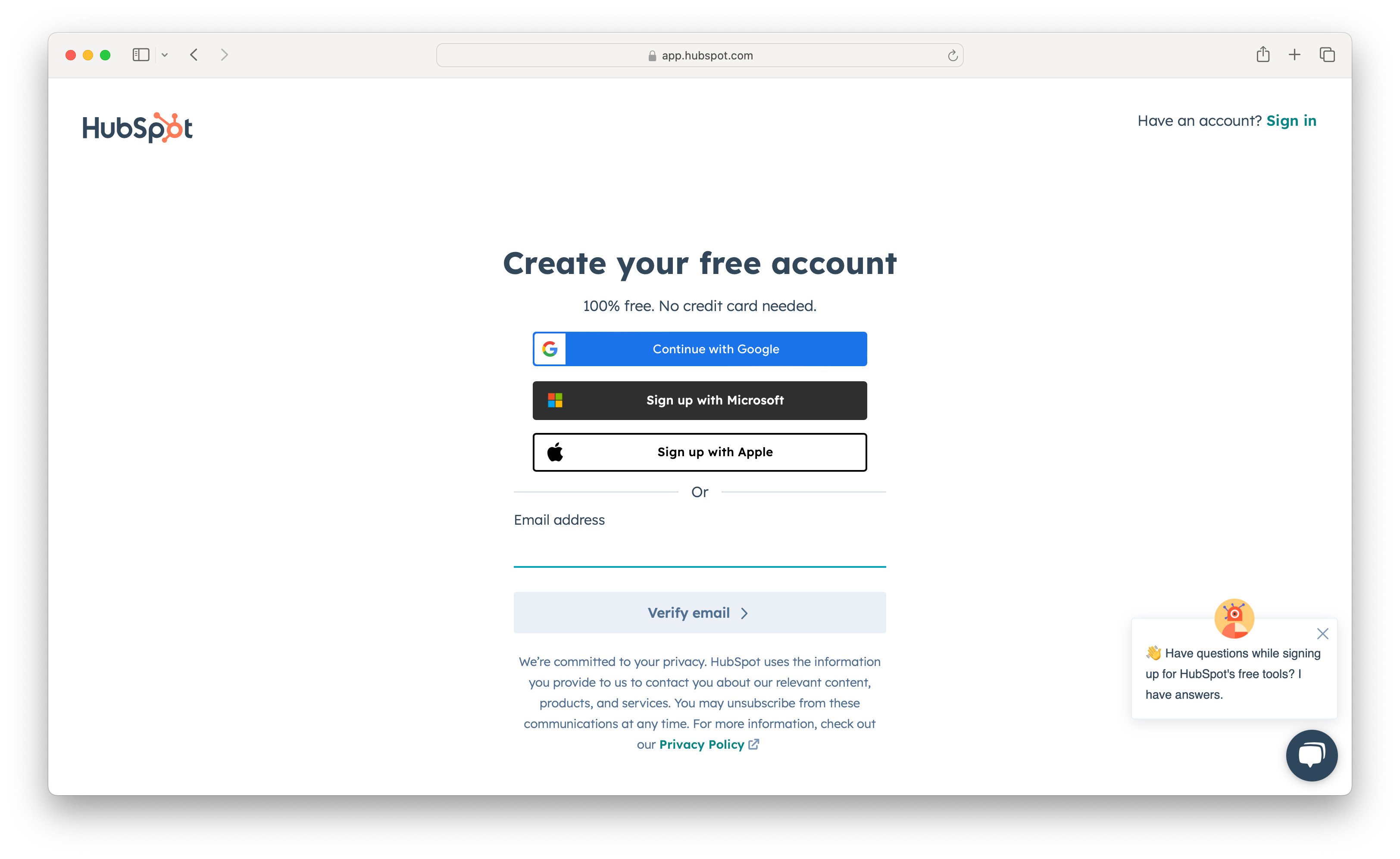
The easiest approach is to maintain a universal sign-in experience for all apps and organizations. For example, HubSpot offers a wide range of products, but their sign-in experience is consistent across all of them. This helps emphasize the parent brand, like HubSpot, rather than individual products like Marketing Hub.
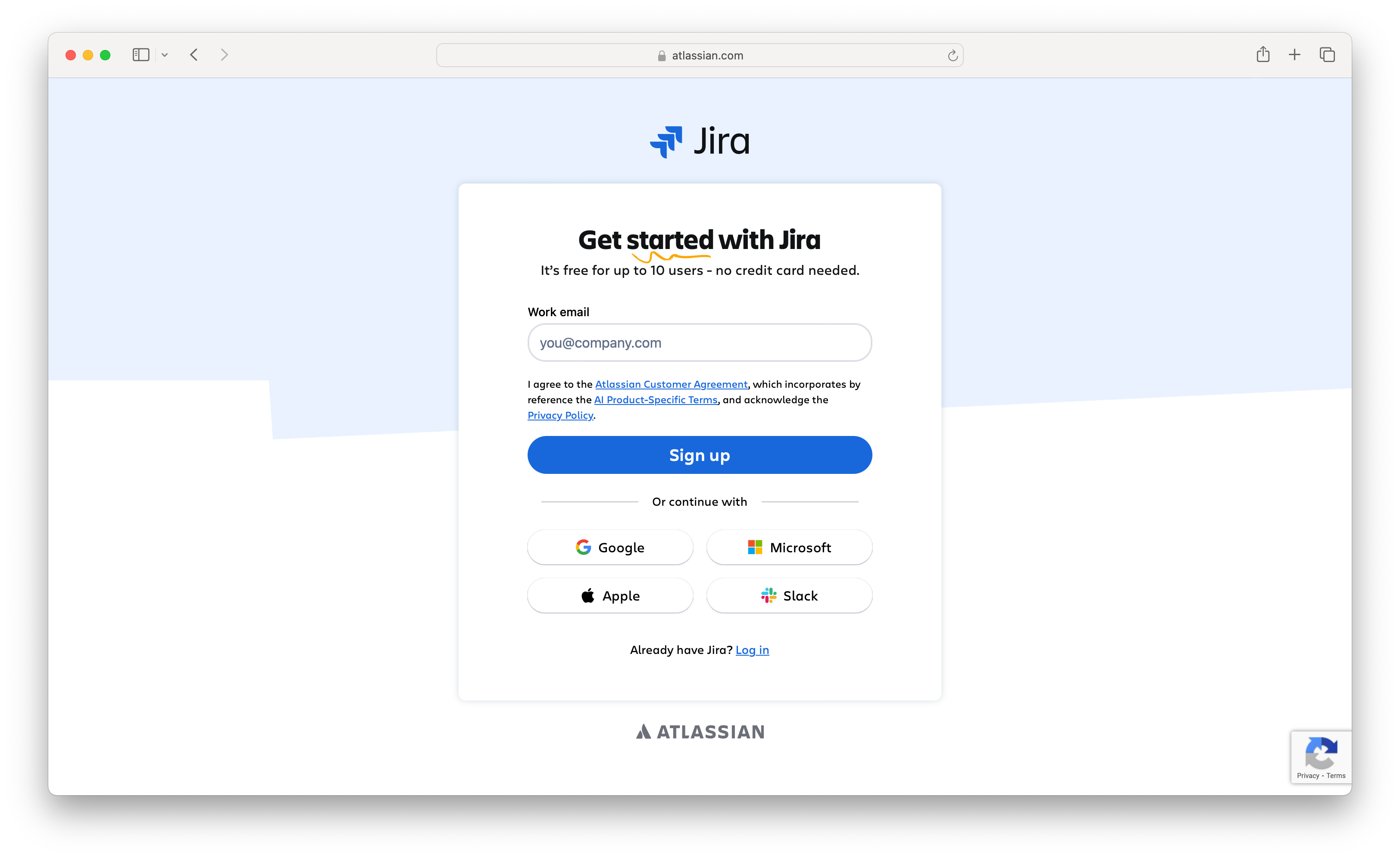
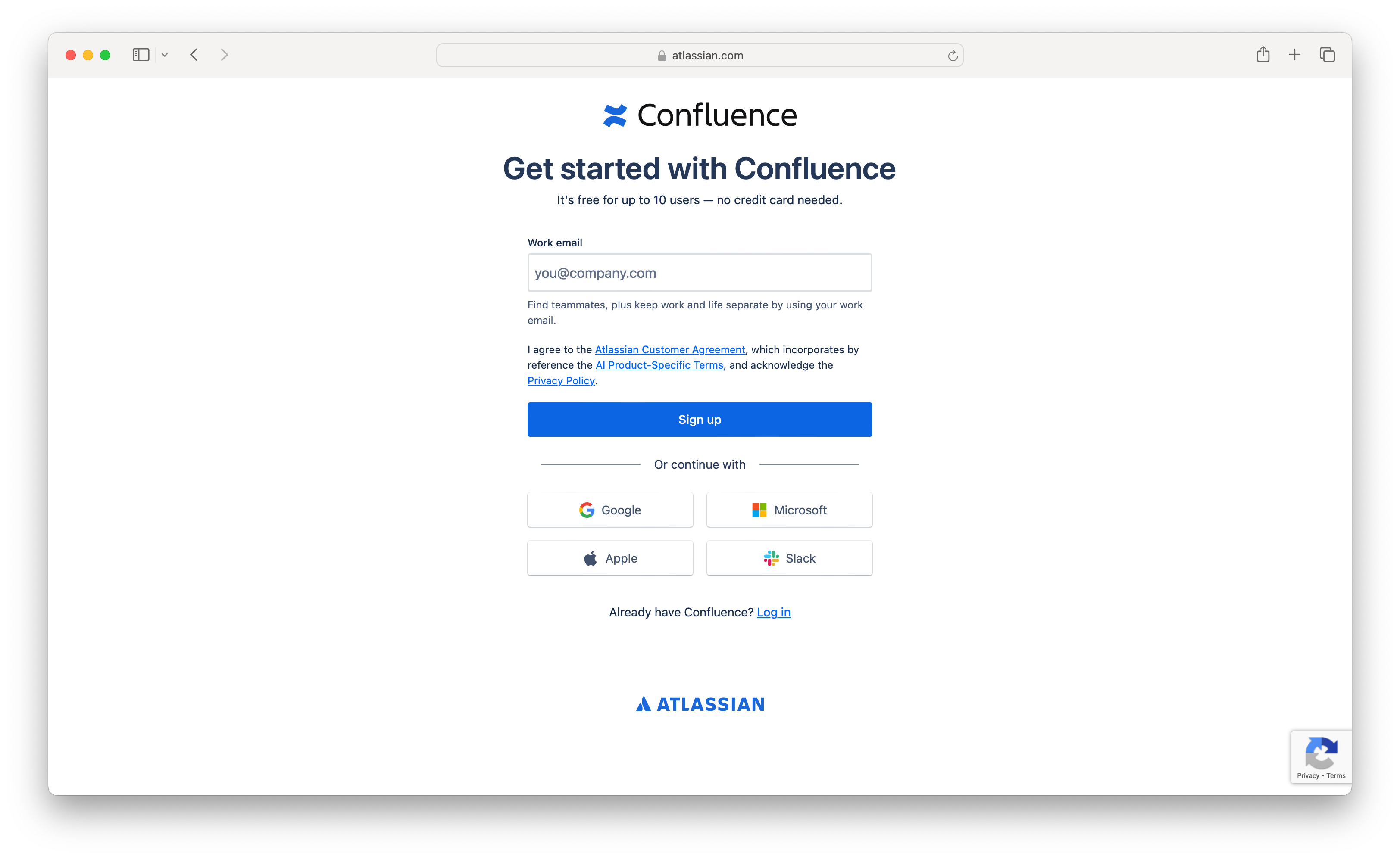
Some businesses follow a multi-product strategy but prefer to keep a single user pool. For example, Atlassian, a well-known SaaS company, offers multiple software products like Jira and Confluence. Here is their sign-in screen.
The sign-in URL includes the parameter ?bundle=jira-software to indicate that this is the sign-in interface for the Jira product.
The sign-in URL includes the parameter ?bundle=confluence to specify that this sign-in interface is for the Confluence product.
Differences in Sign-in UI between the apps:
They use different logos to indicate the specific product.
They have distinct looks, such as varying fonts and button styles.
However, the key authentication methods remain consistent across all apps. This ensures users have a unified profile, including their identifiers (email, social accounts) and authentication factors (e.g., passwords), for more effective identity management.
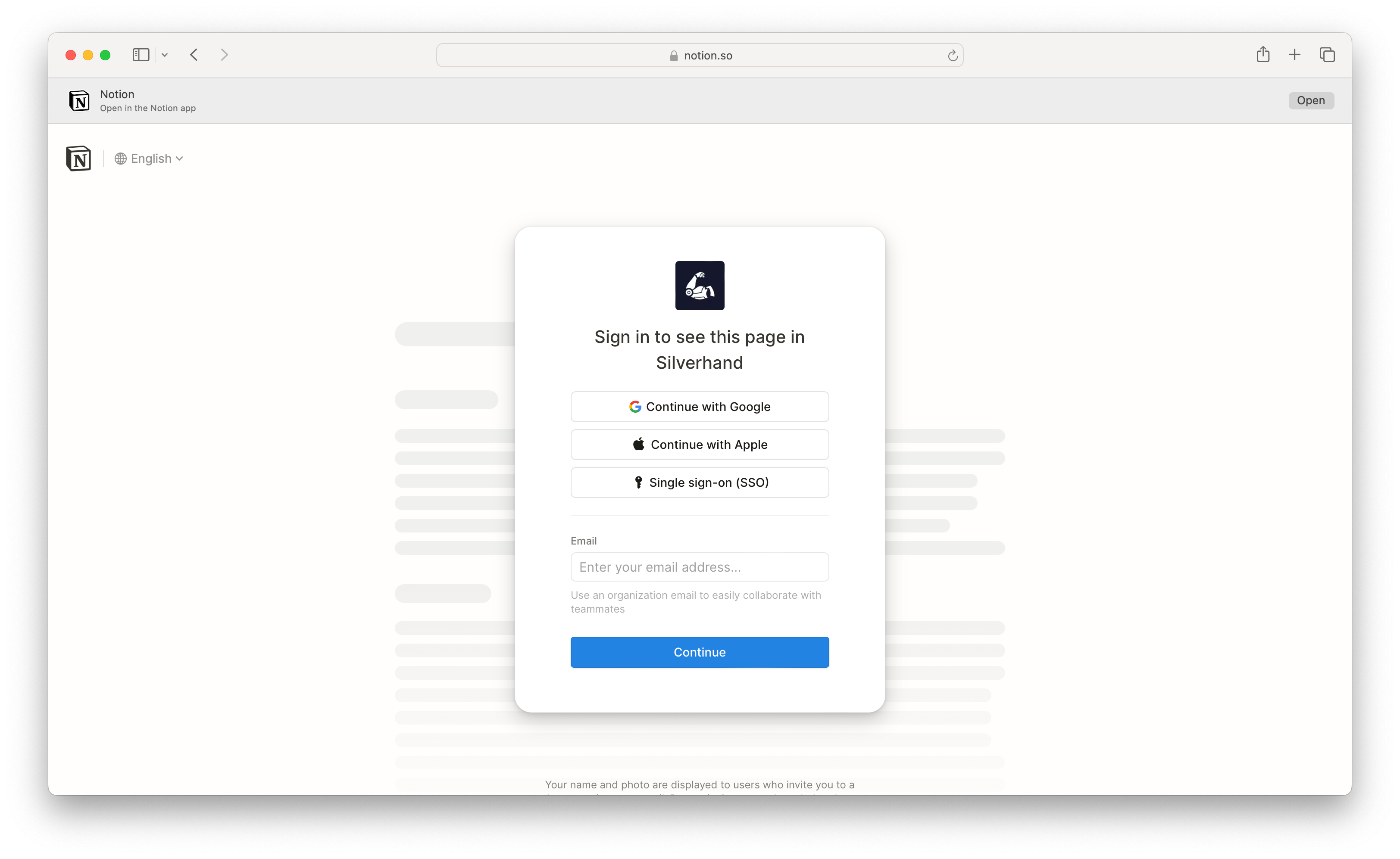
Another example is Notion, a multi-tenant app that allows different clients to host separate workspaces. For instance, if you enter
If "Silverhand" is the workspace name, Notion will display the organization-specific sign-in UI. The only difference is the logo; everything else remains the same.
How can we customize the sign-in experience for each app or organization?#
First, you need an identity and authentication solution as a foundation to build on. Let’s take Logto as an example to show the solutions. Logto offers various options to achieve this:
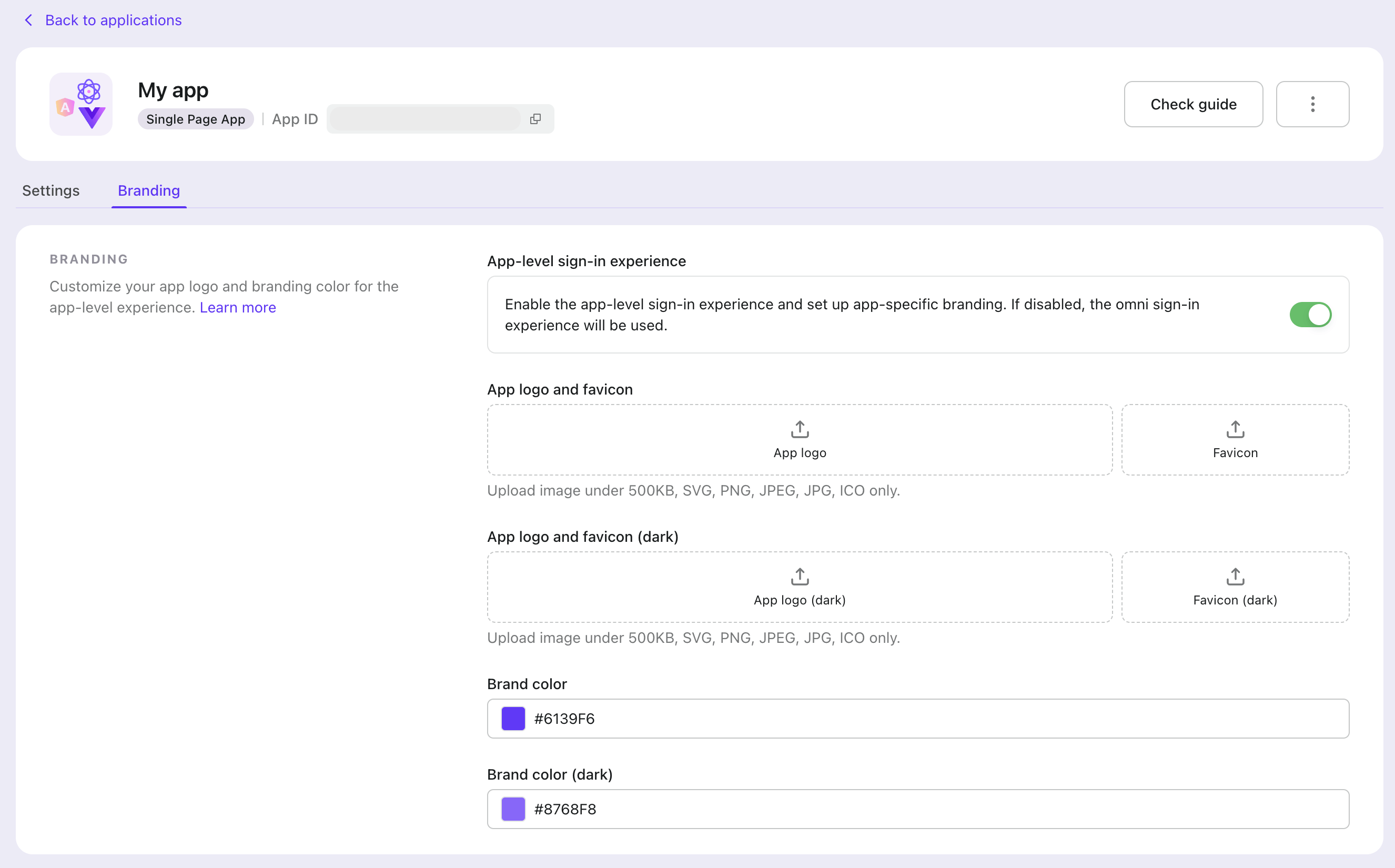
By switching on "app-level sign-in experience", you can set up specific branding and colors for each app. When a sign-in initiated from an app with app-level branding enabled, the sign-in experience will be customized according to the app-level branding settings; otherwise, it will default to the omni sign-in experience settings.
Both light and dark mode settings are available for app-level branding. Dark mode settings will only take effect when the dark mode is enabled in the omni sign-in experience settings.
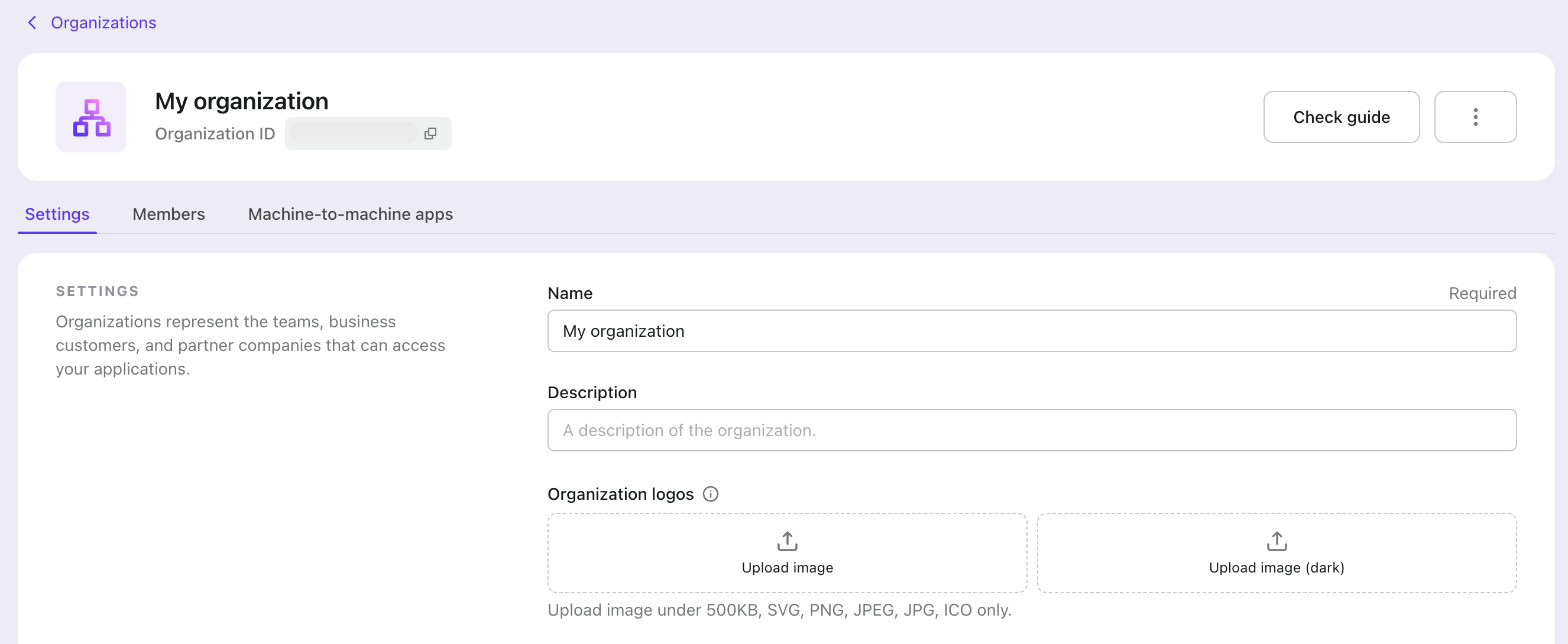
Then, when triggering a sign-in, you can pass the organization ID in the organization_id parameter to tell Logto which organization logo to display. For example, to show the organization logo for organization ID 123456:
If you are using Logto SDK, you can pass the organization_id parameter in the extraParams object of the signIn method.
If you are using an OIDC client, you can pass the organization_id parameter when requesting the authorization endpoint.
Here's an example of how to pass the organization_id parameter in the signIn method using Logto browser SDK:
Bring your own UI if you need more detailed customization#
If customizing the logo and color isn't enough—for example, if you want to hide specific social sign-in options or completely change the look and feel—you can upload your own UI to Logto Cloud.
To display different UIs based on the app or organization, use the organization_id and app_id from the search parameters. Then, write a script to control the UI based on these parameters. For more details, refer to the "Bring Your Own UI" tutorial.