RBAC in practice: Implementing secure authorization for your application
Complete guide to Role-Based Access Control (RBAC): Master permission design, role management, and secure authorization with practical CMS implementation.
YijunDeveloper
Stop wasting weeks on user auth
Launch secure apps faster with Logto. Integrate user auth in minutes, and focus on your core product.
Are you struggling with implementing a secure and scalable authorization system for your application? Role-Based Access Control (RBAC) is the industry standard for managing user permissions, but implementing it correctly can be challenging. This tutorial will show you how to build a robust RBAC system using a real-world Content Management System (CMS) example.
By following this guide, you'll learn:
✨ How to design and implement fine-grained permissions that give you precise control
🔒 Best practices for organizing permissions into meaningful roles
👤 Techniques for handling resource ownership effectively
🚀 Ways to make your authorization system scalable and maintainable
💡 Practical implementation using a real-world CMS example
The complete source code for this tutorial is available on GitHub.
Role-Based Access Control is more than just assigning permissions to users. It's about creating a structured approach to authorization that balances security with maintainability.
You can learn more about What is RBAC in the Auth Wiki.
Here are the key principles we'll follow in our implementation:
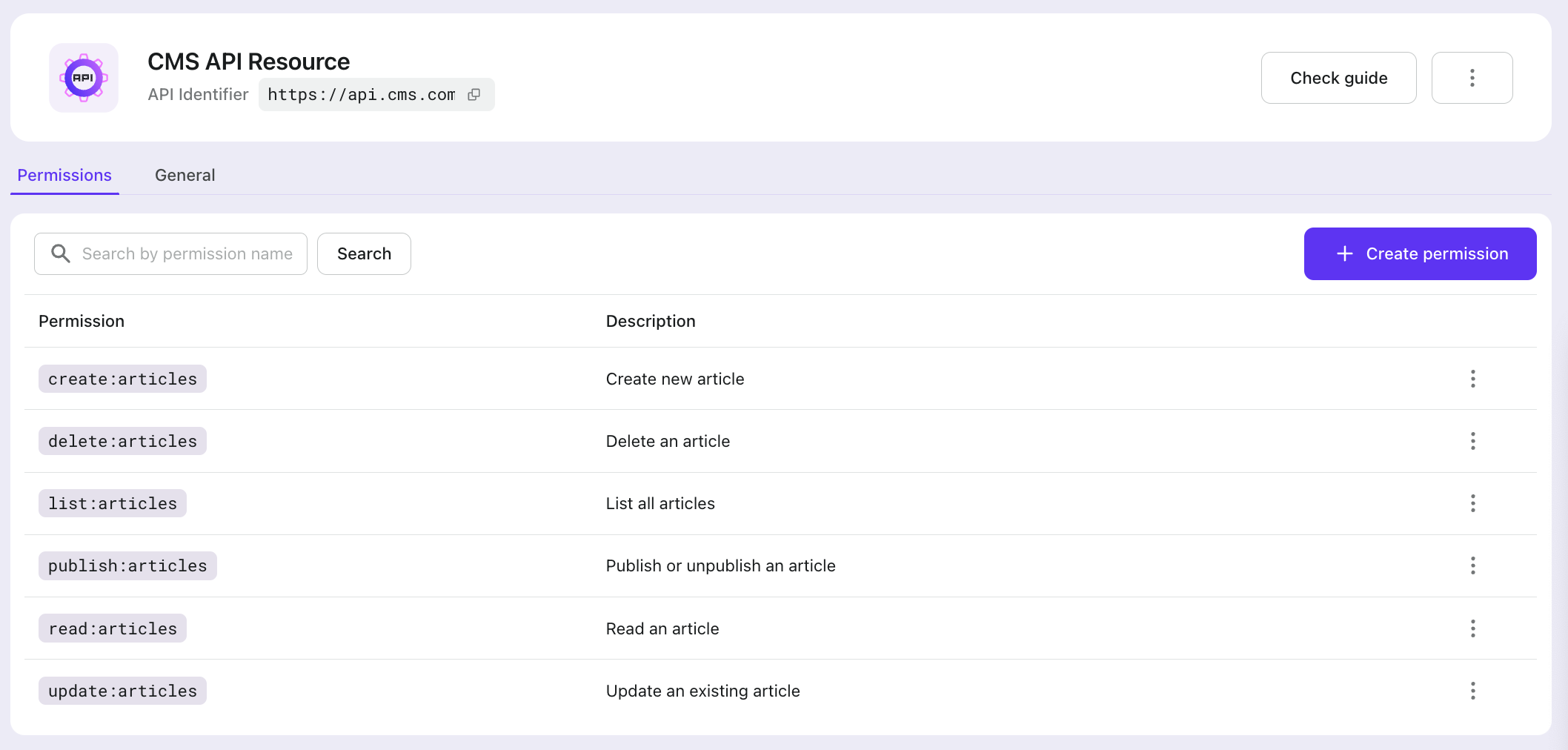
Fine-grained permissions give you precise control over what users can do in your system. Instead of broad access levels like "admin" or "user", we define specific actions users can perform on resources. For example:
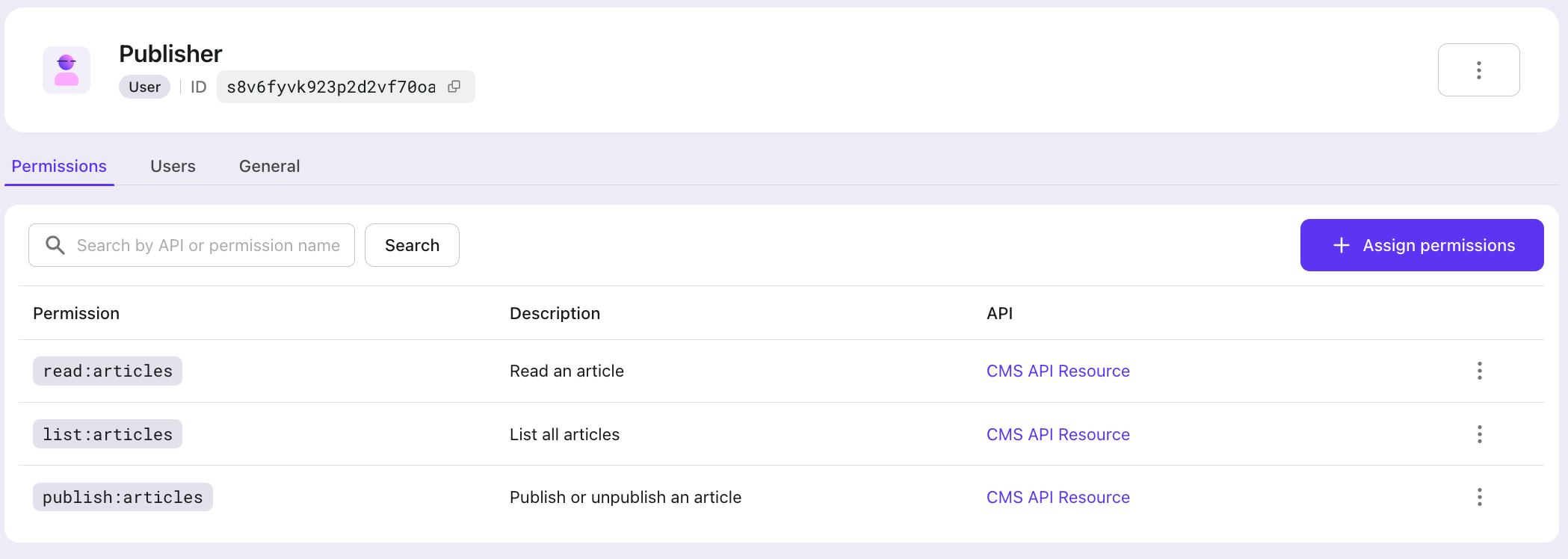
read:articles - View any article in the system
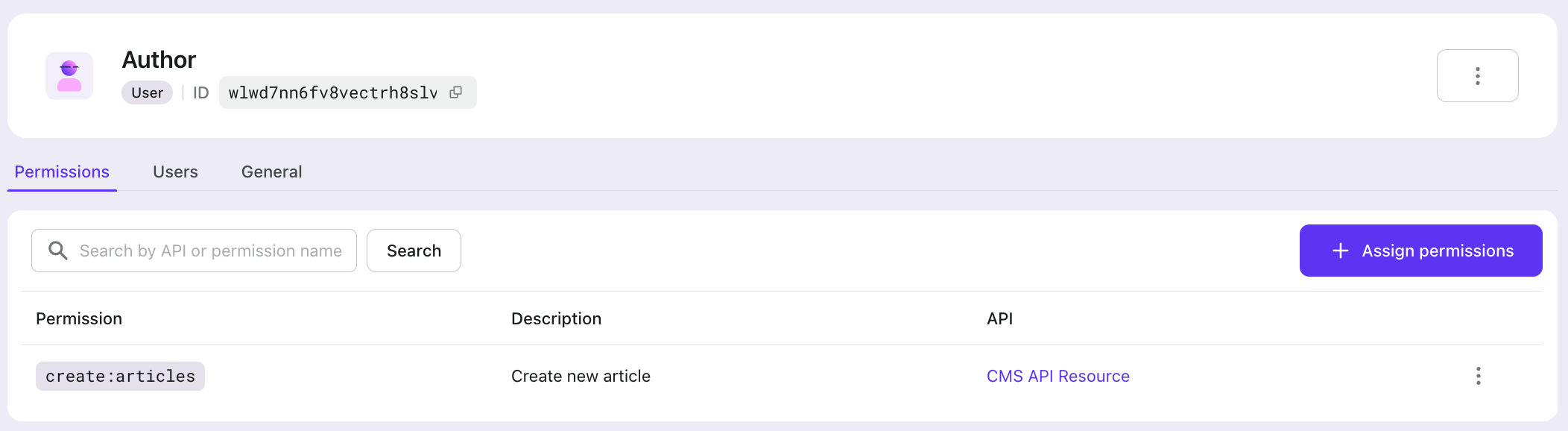
create:articles - Create new articles
update:articles - Modify existing articles
publish:articles - Change the publication status of articles
Resource ownership is a fundamental concept in our CMS's authorization design. While RBAC defines what actions different roles can perform, ownership adds a personal dimension to access control:
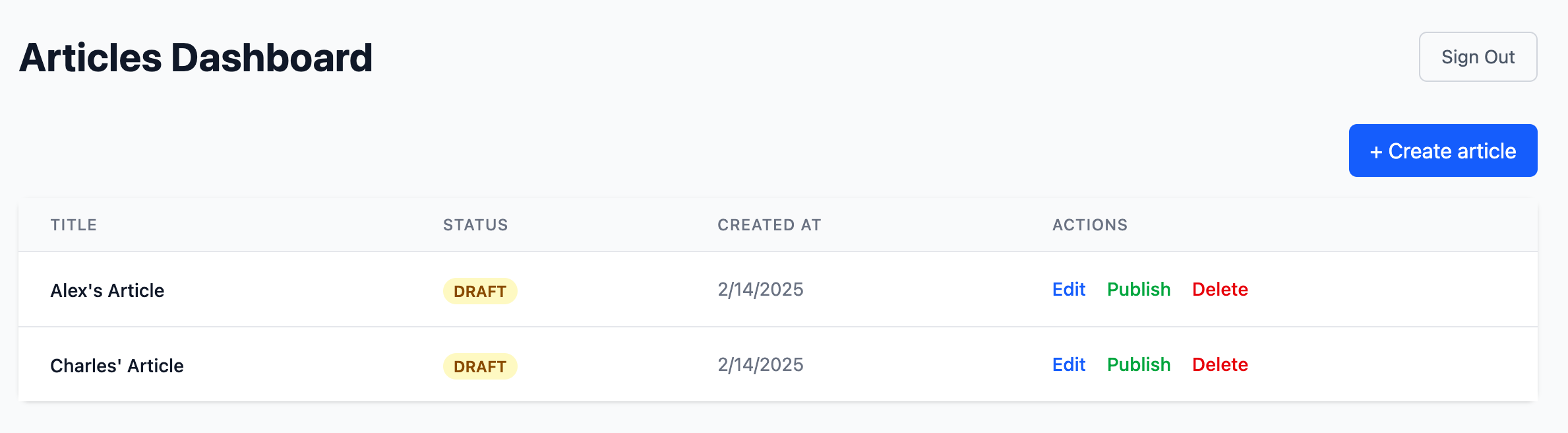
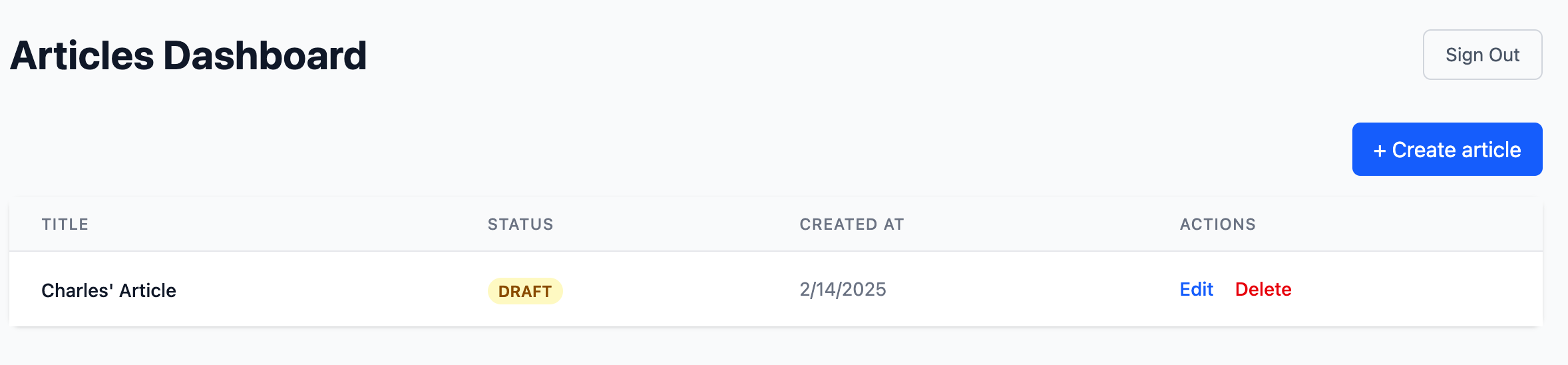
Authors automatically have access to articles they created
This natural ownership model means authors can always view and edit their own content
The system checks both role permissions OR ownership when handling article operations
For example, even without the update:articles permission, an author can still edit their own articles
This design reduces the need for extra role permissions while maintaining security
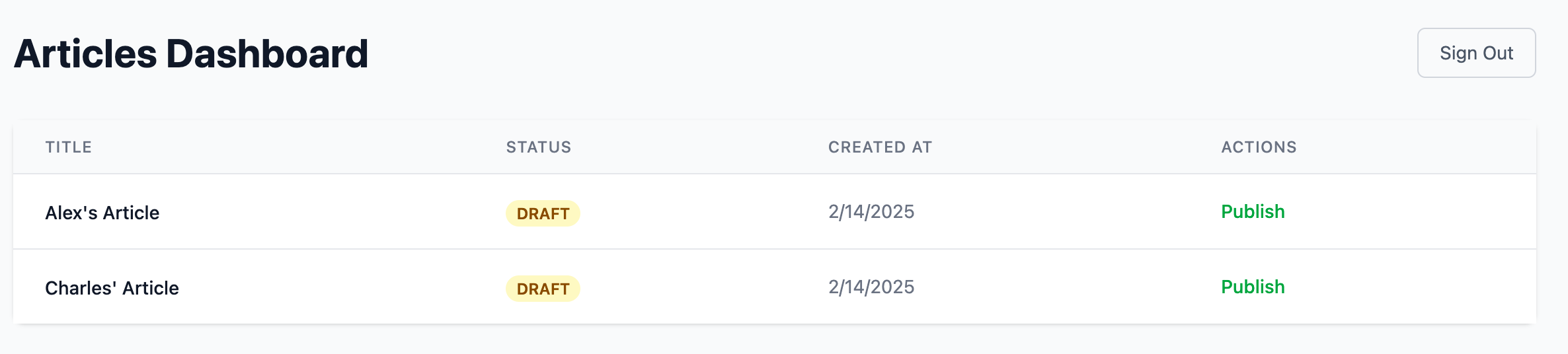
This dual-layer approach (roles + ownership) creates a more intuitive and secure system. Publishers and admins can still manage all content through their role permissions, while authors maintain control over their own work.
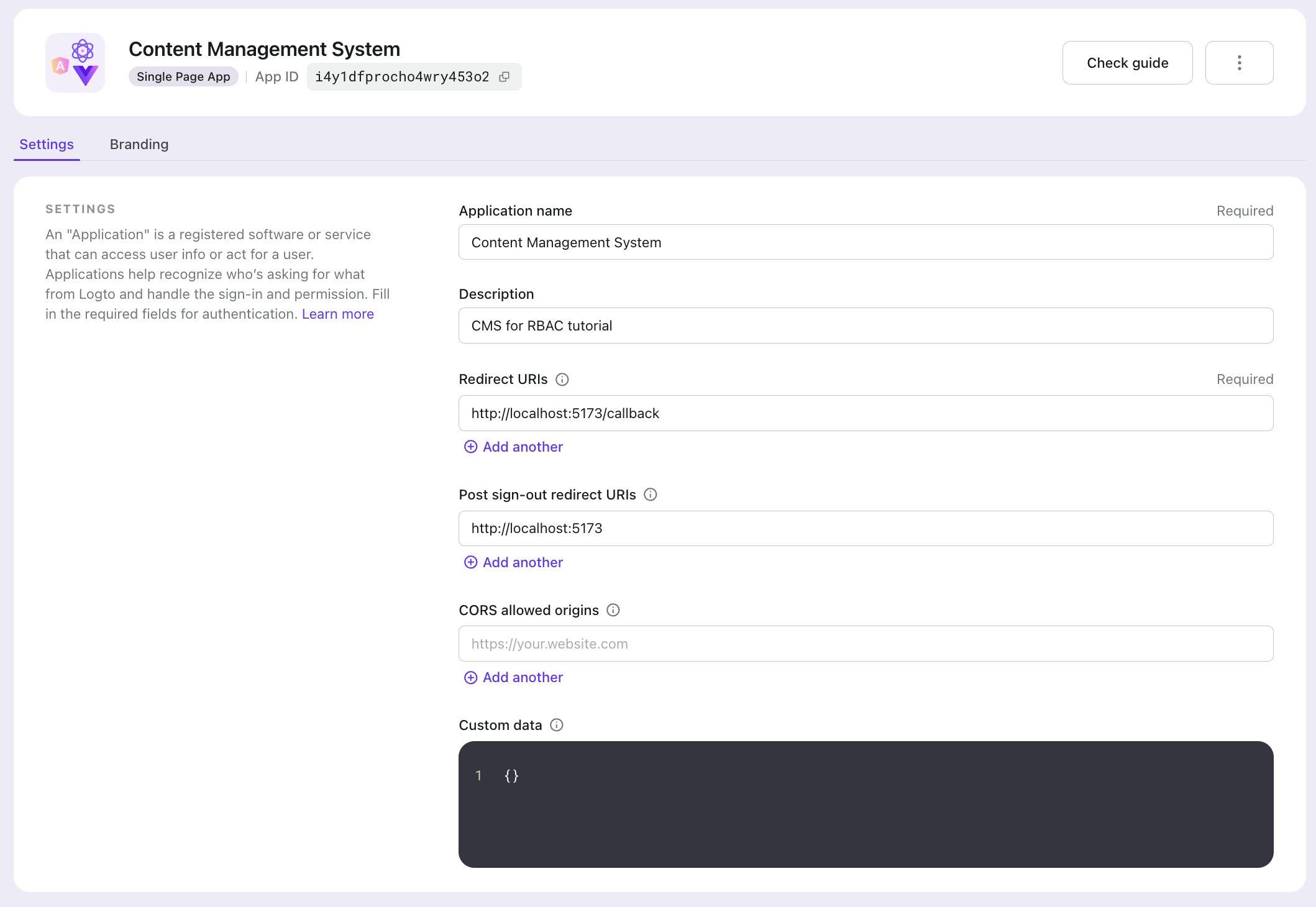
After you have setup Logto in your application, we need to add the RBAC configurations for Logto to work.
Remember to sign out and sign in again to make this change take effect if you are already signed in.
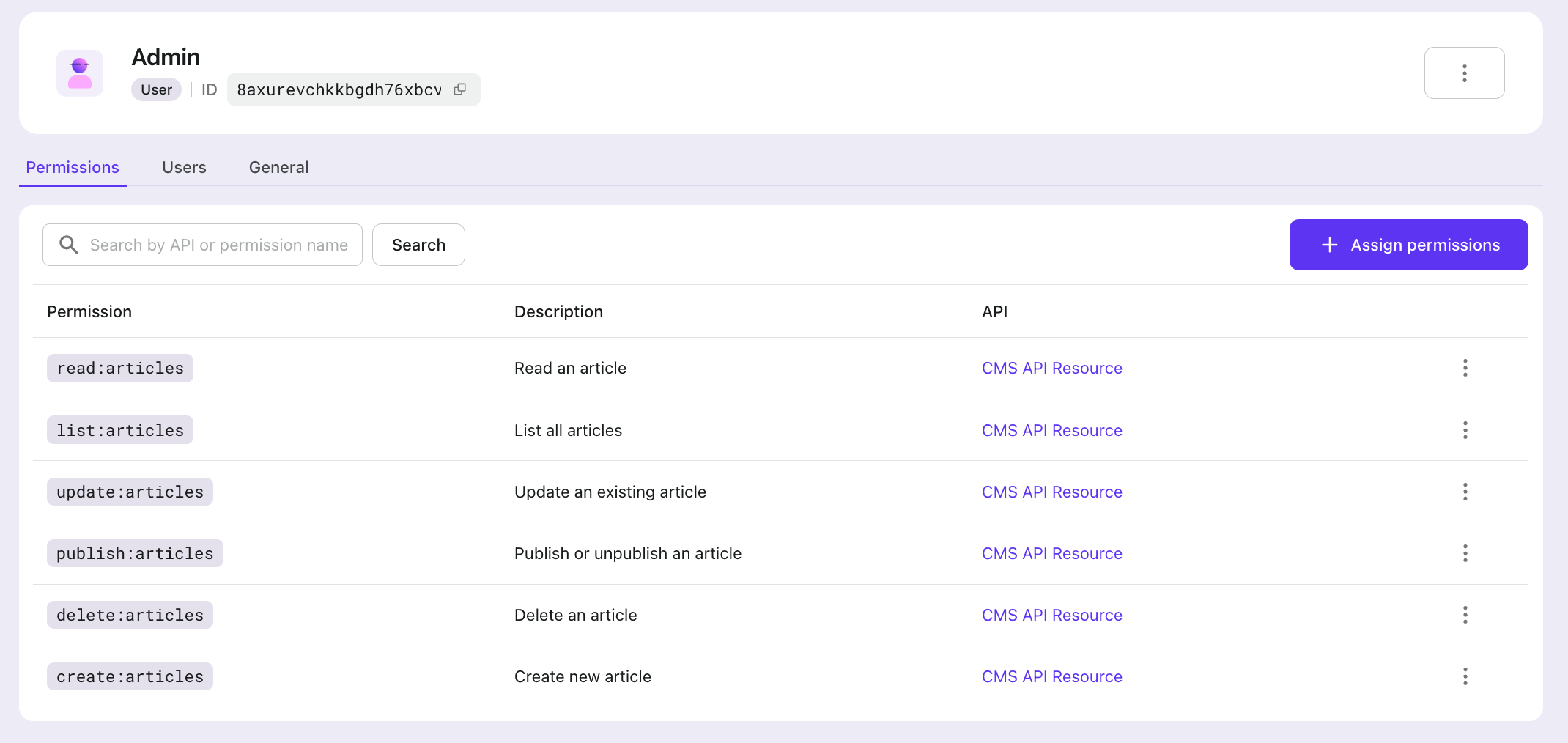
When the user sign-in with Logto and request an access token for the API resources specified above, Logto will add scopes (permissions) related to the user's role to the access token.
You can use getAccessTokenClaims from useLogto hook to get the scopes from the access token.
And you can use the userScopes to check if the user has the permission to access the resource.
First, we need to add a middleware in the backend to check user permissions, verify if the user is logged in, and determine whether they have the necessary permissions to access certain APIs.
As you can see, in this middleware, we verify whether the frontend request contains a valid access token and check if the access token's audience matches the API resource we created in the Logto Console.
The reason for verifying the API resource is that our API resource actually represents the resources of our CMS backend, and all our CMS permissions are associated with this API resource.
Since this API resource represents the CMS resources in Logto, in our frontend code, we include the corresponding Access token when making API requests to the backend:
Now we can use the requireAuth middleware to protect our API endpoints.
For APIs that should only be accessible to users with specific permissions, we can add restrictions directly in the middleware. For example, the article creation API should only be accessible to users with the create:articles permission:
For APIs that need to check both permissions and resource ownership, we can use the hasScopes function. For example, in the article listing API, users with the list:articles permission can access all articles, while authors can access their own created articles:
At this point, we have completed the RBAC implementation. You can checkout the complete source code to see the full implementation.